Apply Convenience Fee for Split Payments and Deposits and Override the Fee by a Percentage Value
Stay is enhanced to allow users to apply a convenience fee for the split payments made using credit cards in reservations, groups, and house accounts and when collecting deposits for reservations from the following screens:
-
Book a Reservation
-
Collect Deposit (Reservation ➜ Estimated Charges ➜ Collect Deposit)
This enhancement also allows users to override and modify the convenience fee charged for a credit card payment method by a percentage value. Previously, users could override the convenience fee by a flat fee amount only.
Feature Setting
The following feature setting must be enabled to use this feature:
-
Name: Card Convenience Fee
-
Value: Must be enabled
-
Comments: License is not required
Permission
The following permission must be assigned to users to override and modify the convenience fee charged and proceed with the payment:
-
Stay_CardConvenienceFeeOverride
To use this feature, users must first configure the convenience fee percentage for the credit card types in the Add/Edit Payment Method screen (Guest Accounting ➜ Payment Methods ➜ Add/Edit).
Applying Convenience Fee for Split Payments
Once configured, when users make split payments for the folios using the Split Payment option (Folio ➜ More ➜ Make a Payment ➜ Split Payment), the Fee column in the Split Payment screen displays the amount to be charged as the convenience fee for the credit card payment method selected for each payment. For example, if a user selects the Paid By option as 3 people, the convenience fee to be charged for each credit card payment method selected for the 3 payments are displayed.
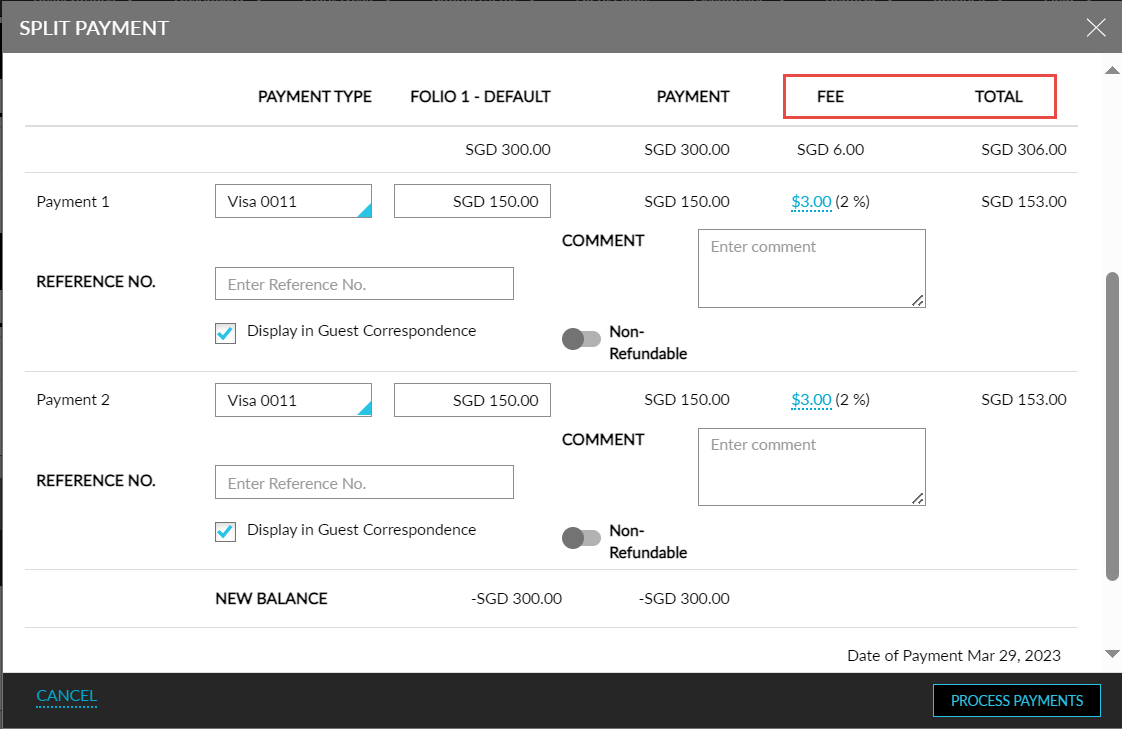
The convenience fee is calculated as the percentage of the total amount across the selected folios for which the payment is made. The Payment column displays the sum of the amount for which the payment must be made excluding the convenience fee. The Total column displays the sum of the values in the Payment and Fee columns for each credit card payment method.
If the selected credit card payment method does not have a convenience fee percentage configured, the Fee column displays a hyphen (-).
Applying Convenience Fee for Reservation Deposits
Users can apply the convenience fee when collecting deposits for reservations from the following screens:
-
Book a Reservation
-
Collect Deposit (Reservation ➜ Estimated Charges ➜ Collect Deposit)
Book a Reservation Screen
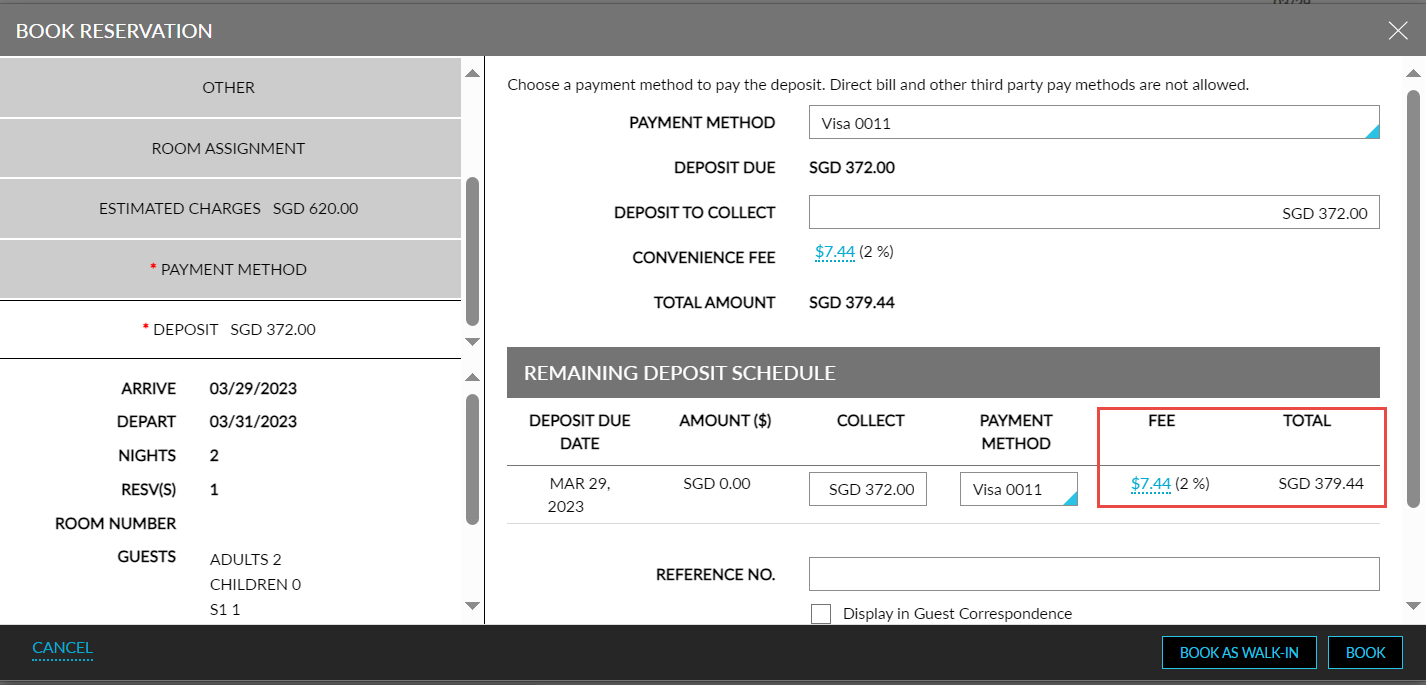
When users select a credit card payment method for collecting the deposit in the Deposit tab of the Book a Reservation screen, the Convenience Fee label in this tab displays the convenience fee calculated for the selected payment method. The convenience fee is calculated as a percentage of the deposit amount to be paid. For example, if the convenience fee percentage is configured as 2% for Visa cards and if the deposit amount to be paid is $400, the convenience fee to be collected is calculated as $8.
If the selected credit card payment method does not have a convenience fee percentage configured, a hyphen (-) is displayed. The Total Amount field displays the sum of the deposit amount for the reservation and the convenience fee calculated for the selected payment method.

For scheduled deposits, the Fee column in the Remaining Deposit Schedule section of the Deposit tab displays the convenience fee for the credit card payment method selected for each schedule. If the selected credit card payment method does not have a convenience fee percentage configured, a hyphen (-) is displayed. The Total column displays the sum of the deposit amount for the schedule and the convenience fee calculated for the selected payment method.
Collect Deposit Screen
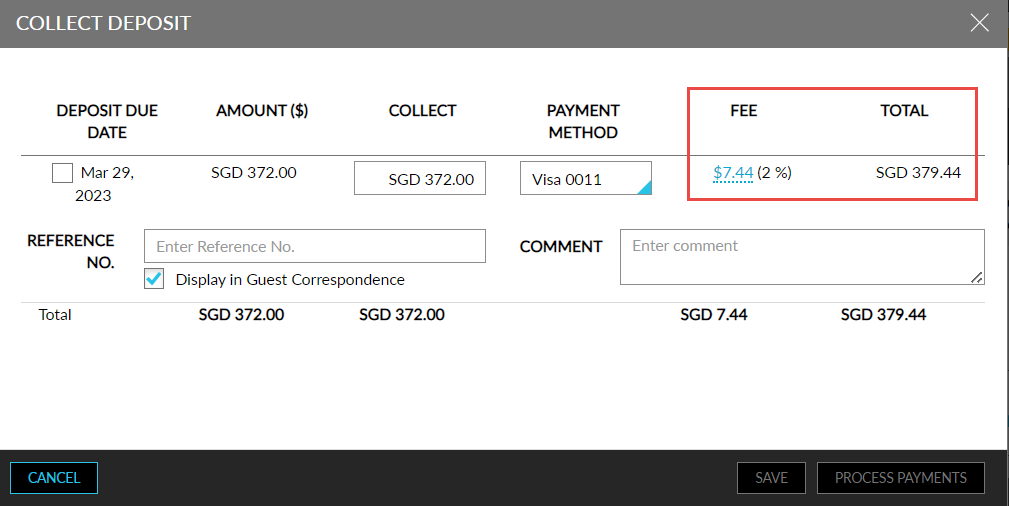
Users can collect the deposit amount after the reservation is booked by clicking on Collect Deposit in the Reservation screen (Reservation ➜ Estimated Charges ➜ Collect Deposit). The Fee column in the Collect Deposit screen displays the convenience fee for the selected credit card payment method. If the selected credit card payment method does not have a convenience fee percentage configured, a hyphen (-) is displayed. The Total column displays the sum of the deposit amount for the reservation and the convenience fee calculated for the selected payment method.
Override Convenience Fee
The convenience fee amount is displayed as a hyperlink. Users with the Stay_CardConvenienceFeeOverride permission can override and modify the convenience fee amount by clicking on the displayed convenience fee.
When users click the hyperlink, the Override pop-up screen appears that displays the following fields:
|
Field |
Description |
|---|---|
|
Payment |
Displays the amount to be paid before the convenience fee is calculated. |
|
Override By |
Users can choose from the following options. |
|
Percentage (%) |
|
|
Amount ($) |
|
|
Convenience Fee |
The amount calculated and displayed in the Amount ($) input field is displayed and cannot be modified by the users. |
|
New Total |
Displays the total of the Payment and Convenience Fee for which payment must be made. |
|
Username |
The username of the user modifying the convenience fee. |
|
Password |
The password of the user modifying the convenience fee. |
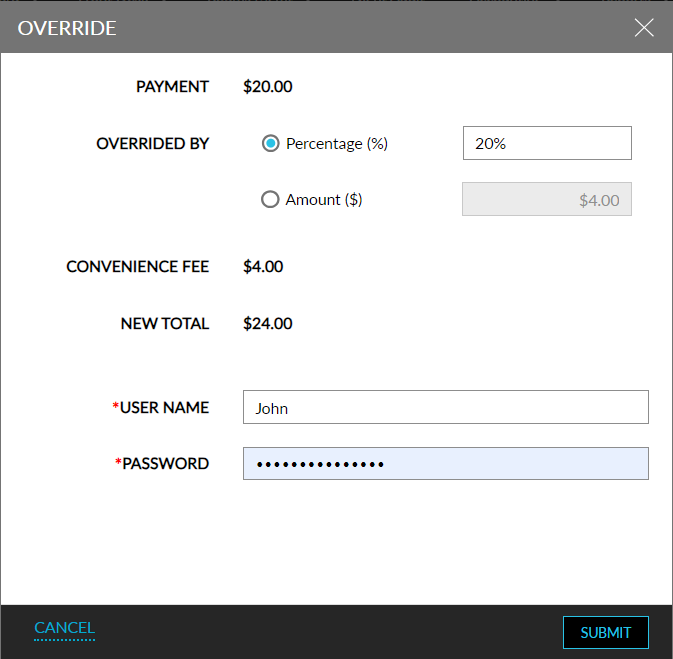
When users click Submit, the credentials of the users are validated to check if the user has the required permission. If authentication is successful, the convenience fee is modified successfully. If the user does not have the required permission, the following message is displayed: You do not have sufficient permission to override convenience fees.
Once the payment is completed successfully, the convenience fee is posted to the folio using the transaction item selected for posting the convenience fee. The reason for the posted fee is displayed as CREDIT_CARD_SURCHARGE.
To support this enhancement, the following changes have been made:
-
Two new fields, Convenience Fee and Total Amount have been added to the Deposit tab of the Book Reservation screen.
-
Two new columns, Fee and Total have been added to the Remaining Deposit Schedule section of the Deposit tab in the following screens:
-
Book Reservation
-
Collect Deposit
-
Split Payment
-
-
The following additional fields have been added to the Confirmation pop-up screen:
-
Payment
-
Override By
-
New Total
-